 Secret Vault
Transfer files between iPhone and PC using a browser over Wi-Fi
Updated
To transfer files between Secret Vault on your iPhone and a computer, open the vault folder you want to use, choose Wi-Fi transfer and enter the displayed IP address in your computer's browser with http:// in front. Both devices need to be on the same trusted local network. The server uses HTTP without transport encryption and does not ask for your vault PIN in the browser. Try a non-sensitive file first and close the server when you finish.
Choose a network and a folder
You only need a browser on your Windows PC or Mac. Connect the computer and iPhone to the same home Wi-Fi network that you trust. Avoid public networks for this transfer, since your vault PIN does not protect browser access while the server is running.
Unlock your vault and open the folder you want to transfer files to or from. The server starts at that folder. For a first attempt, use a separate folder containing one non-sensitive test file. Treat it as a convenient starting folder rather than a separate security boundary, and keep the server running only while you need it.
Open the iPhone's address in your browser
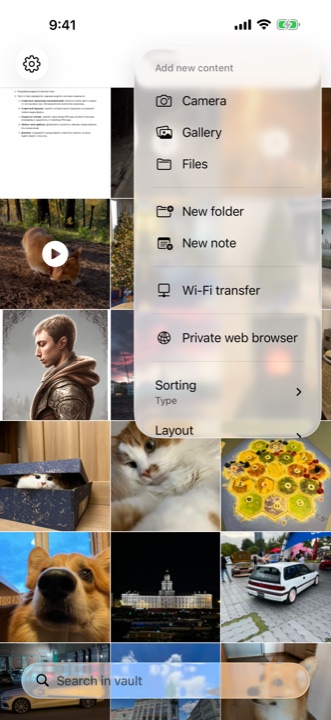
Choose Wi-Fi transfer from the folder's actions menu. The server screen displays an IP address. Use the address on your own iPhone for the current connection. An address copied from someone else's guide will not identify your device.
- In the Secret Vault folder you want to use, open the three-dot menu and choose Wi-Fi transfer.
- Keep the server screen open on your iPhone.
- In your computer browser's address bar, type http:// followed by the displayed IP address. Open it as a website address rather than a search.
- Check the file list. If it is the wrong folder, close the server screen on the iPhone, open the folder you need and start Wi-Fi transfer again.
Upload a file from your computer
The browser page uses English labels, even when the app uses another language. Select Files opens your computer's file picker. Start with a small test file that has a new name so you do not affect an existing file.
Wait for the Upload complete message and check whether it reports any failed files. A completed progress bar alone does not confirm that every file was saved.
- Click Select Files in the browser and choose your test file.
- Wait for the upload to finish and check that its name appears in the browser's file list.
- Close the server screen on the iPhone and find the file in the folder where you started the transfer.
- Open the document or photo, or play the video. Keep the computer's original if the file will not open or the upload reports an error.
Download a vault file to your PC or Mac
Start Wi-Fi transfer from the folder you need and open its address in your browser. Each file has a Download button. Use Open to enter a subfolder.
Click Download next to the file and wait for the browser to finish. Find the saved copy in your browser's downloads folder or the location you selected. Open it and check its contents. For a video, check playback too. Keep the vault's copy until you have checked the download.
If the browser cannot connect
Check the network and current address before looking at permissions. Keep the http:// prefix: this server does not provide HTTPS. If your browser requires a secure connection and you do not want to use HTTP, choose another export option in Secret Vault.
Apple lets you change app access under Settings, Privacy & Security, Local Network. If Secret Vault appears in that list, check its permission. Its absence from the list does not establish why a connection failed.
- Check that both devices are connected to the same Wi-Fi network. On a guest or work network, ask the administrator whether devices are allowed to connect to one another.
- Check that the iPhone's server screen is still open and its transfer time has not expired.
- If you changed networks, close and reopen the server screen. Use the address it shows now.
- Check http:// and the digits and dots in the address. If you use a VPN, check whether its settings allow local network access.
- If it still will not connect, try one test file on another trusted home network. For a support request, describe the failure and include your iOS and app versions. Leave out your PIN and personal files.
Finish the transfer and stop the server
Without Premium, Wi-Fi transfer has a time limit shown on the server screen. The duration can change. If time runs out during an upload, check the files you received before trying again.
When you finish, use the cancel button to close the server screen on your iPhone. That stops the server. Closing the computer's browser tab alone does not close the server screen in the app.
Open the copies in their destination and keep the originals until you have checked the files you need. Wi-Fi transfer copies files when you use it; it does not set up automatic vault syncing.