 Secret Vault
Disguise your iPhone photo vault and use different PINs
Updated
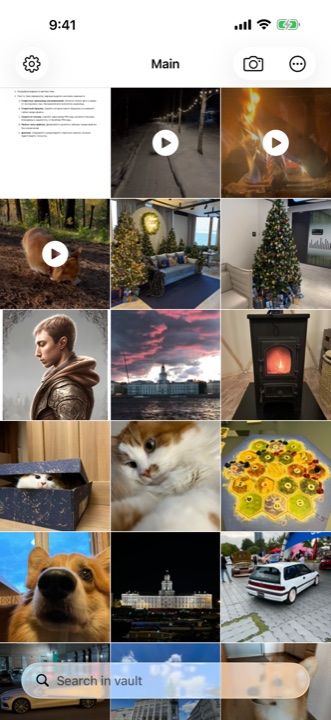
Secret Vault lets you create multiple vaults on iPhone, each with its own PIN. You can also change the app icon, put a fake game loading screen in front of the PIN screen and require several correct PIN entries in a row. The icon and loading screen make the entrance less obvious; the PIN controls access to the contents.
Different PINs open different vaults
Your personal photos, work documents and notes do not all need to live together. Create a separate vault for each collection. Each has its own PIN and contents: one code takes you to your photos, while another opens your documents.
You can also keep a collection you are happy to show someone. For example, put your travel pictures in one vault and personal files in another. When you open the travel vault, those are the files you see.
- Enter your vault and open Secret Vault's settings.
- Choose Create one more vault.
- Set a new PIN that you have not used for another vault.
- After the creation message, choose Leave the vault and enter the new PIN. Add a few test files.
- Leave again and enter your original PIN to check that it still opens the original contents.
How to change the Secret Vault app icon
You see the app icon every day. If you want a different look or a less obvious vault symbol, open settings and choose Change app icon. Secret Vault offers several built-in designs, including game-themed options.
Choose an icon, then return to your Home Screen to see how it looks alongside your other apps. The same settings page includes a loading screen preview, so you can see the entrance that goes with your chosen design.
Changing the icon changes its appearance. It does not guarantee that someone cannot find the app on your phone.
Show a game loading screen before the PIN screen
A number pad makes it obvious that an app is waiting for a code. Secret Vault can cover that screen with a splash screen and a loading indicator. Choose a game-themed design and the app will look as though a game is loading when you open it.
To reach the PIN screen, double-tap the loading indicator near the bottom. You do not need to wait for loading to finish: that gesture dismisses the screen. Your vault still needs its PIN before it opens.
The splash screen requires Premium. It is an entrance design; there is no playable game on that screen.
- Open Change app icon in settings and use the preview to choose a game-themed design.
- Turn on Show splash screen.
- The next time you open the app, check the splash screen, double-tap the loading indicator and enter your vault's PIN.
Require repeated correct PIN entries to hinder guessing
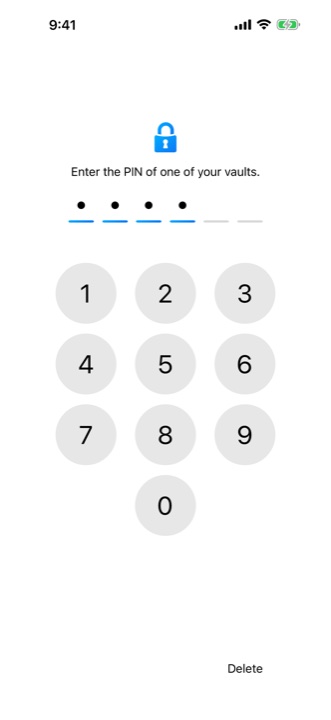
You can add another condition before a vault opens. Suppose you choose three confirmations. Even the correct PIN will not open the vault on the first entry: you need to enter that same code twice more in a row.
Someone trying random codes will not get straight in after one lucky guess. An incorrect PIN resets the sequence, so the correct code must be repeated from the start. This adds a condition to signing in; it is not a guarantee against every kind of attack.
In the current vault's settings, open Number of PIN confirmations. The available choices are 1, 2, 3, 5 and 10. Choose 1 for the usual single correct entry. The setting belongs to the vault you are in, so you can choose a different number for each vault.
Start with two or three entries and see whether that suits your everyday use. Remember the number as well as the PIN: the screen staying closed after the first correct entry is expected when confirmations are enabled.
Try it with two test vaults
Install Secret Vault and create two vaults with different PINs. Add a couple of ordinary photos to one and a test note to the other. Open each in turn, then enable repeated PIN entry for just one of them. You can see how the settings work together before moving your personal files.
Next, pick an icon you like and try the game loading screen if you use Premium. You can give each collection its own place and set up an entrance that works for you.
Before moving important files, keep your PINs somewhere safe: Secret Vault cannot recover a forgotten PIN. If you are still deciding how to hide photos, the guide below compares the Hidden album with a separate vault.